


So I am well into the html, css, and javascript parts of my studies. I recently learned bootstrap. Wow bootstrap is neat now I can do some cool things. I think I know of a good project. Jim’s conscience says “Jim keep studying” my ego says “no studying is boring let’s make my first app!”
Heater Calc
Years ago I wrote a windows program to calculate heat transfer using the technical note Estimating Power Requirements from Minco. Minco makes some really hot products, heaters :). I thought this would be a perfect use case for my newly obtained knowledge in front end design. I learned front end design using a udemy course by Mike Price and his team. I liked the front end teacher. He was pretty good. You can find the course at the following link. Beginner Full Stack Web Development Make sure you wait until it goes on sale. You should only spend about $12 on it. I watched up to the section on bootstrap and then started my project heaterCalc.com.
Note: I used a couple of full stack courses in my studies, so try several. I also liked Colt Steels course The Web Developer Bootcamp. At $12 each why not.
What is bootstrap?
Bootstrap is the most popular CSS Framework for developing responsive and mobile-first websites.
Mobile-first? but I am making a desktop webpage do I really need this mobile-first thing? Think of it this way 50% of screen time is on mobile so if you are serious about making a web app it better work great on mobile!
Now when I did this app I had to think of how I want it to look and function. I have done so many products with .NET that I already had a clear picture of what I wanted to do. But I was disheartened with what I was learning with html, css and javascript. How the heck was I going to get a similar experience to my .NET programs. Bootstrap to the rescue! It allowed me to make cool apps with dialogs, menus, popups, alerts and the like.
There are a lot of resources online to help you figure this out. I used bootstraps documentation primary and they have great code snippets you can use.
Navbar
The code for typical navbar is as follows. The main class is “navbar” and added to this is some styling classes “navbar-light” and “bg-light”. You can read the documentation for more details on what all the classes do.
<nav class="navbar navbar-expand-lg navbar-light bg-light">
  <a class="navbar-brand" href="#">Navbar</a>
  <button class="navbar-toggler" type="button" data-toggle="collapse" data-target="#navbarNavAltMarkup" aria-controls="navbarNavAltMarkup" aria-expanded="false" aria-label="Toggle navigation">
    <span class="navbar-toggler-icon"></span>
  </button>
  <div class="collapse navbar-collapse" id="navbarNavAltMarkup">
    <div class="navbar-nav">
      <a class="nav-item nav-link active" href="#">Home <span class="sr-only">(current)</span></a>
      <a class="nav-item nav-link" href="#">Features</a>
      <a class="nav-item nav-link" href="#">Pricing</a>
      <a class="nav-item nav-link disabled" href="#" tabindex="-1" aria-disabled="true">Disabled</a>
    </div>
  </div>
</nav>
I had some issues with this on mobile. When your screen shrinks down to a mobile size, your nav bar compress into a hamburger icon. When the user presses this icon a menu will drop down covering your content. If covering your content is bad thing consider using icons instead of text.
Modal
By far my favorite component are modals. I use them all the time. They are similar to dialogs in .NET. I use them for everything, sign in, settings, changes to inputs, alerts…

Below is typical code for a modal. The class is “modal”. They are best placed at the end of your body in your html.
<div class="modal" tabindex="-1" role="dialog">
  <div class="modal-dialog" role="document">
    <div class="modal-content">
      <div class="modal-header">
        <h5 class="modal-title">Modal title</h5>
        <button type="button" class="close" data-dismiss="modal" aria-label="Close">
          <span aria-hidden="true">×</span>
        </button>
      </div>
      <div class="modal-body">
        <p>Modal body text goes here.</p>
      </div>
      <div class="modal-footer">
        <button type="button" class="btn btn-secondary" data-dismiss="modal">Close</button>
        <button type="button" class="btn btn-primary">Save changes</button>
      </div>
    </div>
  </div>
</div>
You might not like the default spacing of the items in modal so override them with your own CSS. Often the modal won’t fit on the screen so set the margins of the following to zero.
.my-modal-label {
    margin-top:0rem;
}
.my-modal-title {
    margin-top:0rem;
    margin-bottom:.3rem;
}
.my-modal-edit-field {
    margin: 0rem 1rem 0rem 1rem !important;
}
Cards
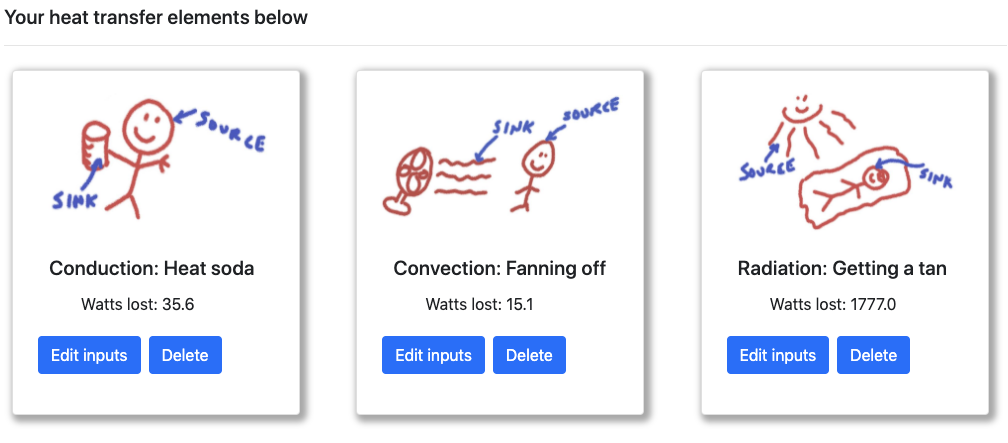
My second favorite component is cards. I use them all the time to hold an instance of an object. In heatercalc.com I use individual cards for each type of calculation. This allows you to visually create a complex set of calculations just by adding additional cards.
Suddenly spaghetti code appears!
Things start getting messy when you rewrite the dom with code. It seems very hard to do a nice separation of concerns with all this. Javascript, jquery and ajax can create some really messy code. Everybody seems to be in every bodies business. This is so foreign to how you design things in .NET.
So I will need to refactor this at some point with some useful tutorials. I might follow this one. how-to-organize-our-js-jquery-spaghetti-code-better .